How to Format Your Paperback in Word: Paragraph Indents and Spacing (KDP Tutorial)



When you’re formatting a paperback for Amazon KDP, paragraph indents and spacing matter more than most new authors realize. Even if your manuscript reads beautifully, inconsistent spacing or incorrect indents can instantly make a book look amateur in print.
The good news? You don’t need expensive software to fix this. You can format your paperback entirely in Microsoft Word and get professional, print-ready results—as long as your paragraph settings are correct.
In this tutorial, I’ll walk you step by step through exactly how to set up paragraph indents and spacing in Word so your paperback meets Amazon KDP standards and looks clean, polished, and bookstore-ready.

Why Paragraph Formatting Matters for Print Books
Paragraph formatting affects how your book feels to a reader.
Proper indents and spacing:
-
Make pages easier to read
-
Prevent awkward gaps between paragraphs
-
Give your book a professional, traditionally published look
-
Reduce formatting errors when uploading to KDP
Print books do not format the same way as ebooks. If you use extra line breaks or tabs instead of proper paragraph settings, those shortcuts often cause problems in print.
Step 1: Clean Up Your Manuscript First
Before adjusting any paragraph settings, start with a clean manuscript.
-
Open your manuscript in Microsoft Word
-
Turn on formatting marks by clicking the ¶ (pilcrow) icon in the toolbar (or press
Ctrl + Shift + 8)
This lets you see:
-
Extra spaces
-
Tabs
-
Multiple paragraph returns
Remove Tabs (Very Important)
Print books should never use tabs for paragraph indents.
-
Press
Ctrl + Hto open Find & Replace -
In Find, type:
^t -
Leave Replace blank
-
Click Replace All
This removes all tab-based indents in one step.
Step 2: Select Your Entire Manuscript
To apply consistent paragraph formatting:
-
Press
Ctrl + Ato highlight the entire manuscript
You’ll apply these settings globally so everything stays consistent.
Step 3: Open Paragraph Settings in Word
With your text highlighted:
-
Right-click anywhere in the text
-
Click Paragraph…
This opens Word’s Paragraph dialog box—the control center for print formatting.
Step 4: Set Alignment and Outline Level
Inside the Paragraph window:
-
Alignment: Justified
-
Outline Level: Body Text
Justified alignment creates clean, even margins on both sides of the page, which is standard for paperback novels.
Step 5: Set Paragraph Indents
This is where most formatting issues come from.
Use These Settings:
Indentation
-
Left:
0 -
Right:
0 -
Special: First line
-
By:
0.2"
This creates a subtle, professional first-line indent without looking heavy or outdated.
📌 Important:
Do not use tabs or spaces to indent paragraphs. Always use the First Line indent setting.
Step 6: Set Paragraph Spacing and Line Spacing
Still in the Paragraph window, move to the Spacing section.
Use These Settings:
-
Spacing Before:
0 pt -
Spacing After:
6 pt -
Line Spacing: Single
-
✅ Check “Don’t add space between paragraphs of the same style”
This keeps paragraphs visually tight while still readable—perfect for fiction paperbacks.
Step 7: Review Your Manuscript for Consistency
Scroll through several pages and look for:
-
Even first-line indents
-
No blank lines between paragraphs
-
No random spacing shifts
-
Scene breaks (like
***) centered and not indented
Headings, chapter titles, block quotes, and special sections will be formatted separately later—this step is strictly for body text.
Common Paperback Formatting Mistakes to Avoid
-
 Using tabs for indents
 -
Pressing Enter multiple times to add space
-
Mixing paragraph styles
-
Leaving “Spacing After” unchecked
-
Formatting each paragraph manually
Final Thoughts
Proper paragraph indents and spacing are one of the simplest ways to instantly elevate your paperback’s appearance. These settings help your book look polished, professional, and aligned with Amazon KDP’s print expectations.
Once this step is done, the rest of your paperback formatting becomes much easier—and far less frustrating.
If you want to learn everything you need to know about formatting a print book from start to finish, be sure to check out my full guide, How to Format Your Print Book in Microsoft Word Using Amazon KDP Templates, where I walk you through the entire process step by step.

We Believe All Authors Can Aspire to Take Their Writing to the Next Level!
Our Goal for Aspiring Writer Academy is to help people learn how to write quality fiction, teach them to publish and promote their work, and to give them the necessary tools to pursue a writing career.
Before You Go… Grab This Free Resource!
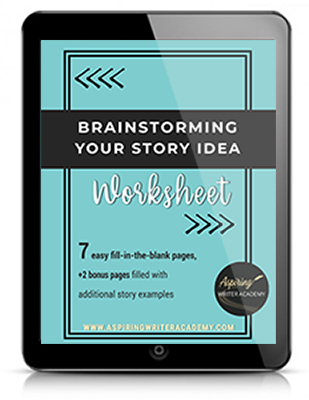
If you’re in the early stages of writing your novel, don’t forget to download our free Brainstorming Your Story Idea Worksheet. It includes:
-
Fill-in-the-blank prompts
-
Story structure examples
-
Guided questions
-
Idea-boosting templates
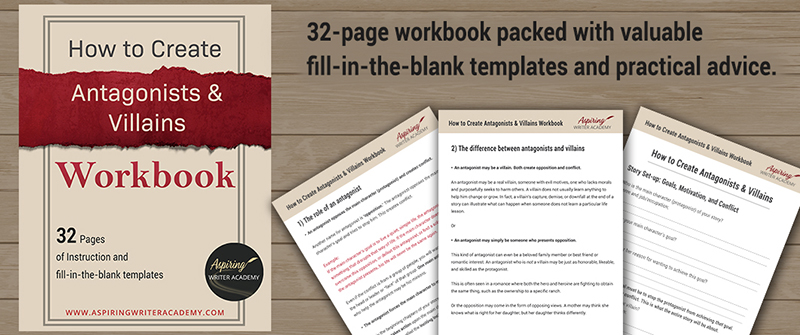
Do you find it difficult to create compelling antagonists and villains for your stories? Do your villains feel cartoonish and unbelievable? Do they lack motivation or a specific game plan? Discover the secrets to crafting villains that will stick with your readers long after they finish your story, with our How to Create Antagonists & Villains Workbook.
This 32-page instructional workbook is packed with valuable fill-in-the-blank templates and practical advice to help you create memorable and effective antagonists and villains. Whether you're a seasoned writer or just starting out, this workbook will take your writing to the next level.
Other Posts You May Like: