
How to Format Your Book Back Matter for Amazon KDP (Step-by-Step Tutorial)
When you think about publishing your book, most authors focus on the story itself—but what happens after the last chapter can be just as important. Your back matter is the part of your book that helps you connect with readers, promote your other work, and grow your long-term audience. Done right, it’s a powerful marketing tool that can increase sales, build your email list, and turn casual readers into loyal fans.
In this step-by-step tutorial, we’ll focus specifically on formatting your book back matter in Microsoft Word for print books on Amazon KDP. You’ll learn how to add pages, insert book covers, use QR codes, and keep everything looking professional.

What Is Back Matter?
Back matter is all the content after “The End” of your book. This can include:
-
A Dear Reader Letter
-
Bonus chapters or excerpts from your other books
-
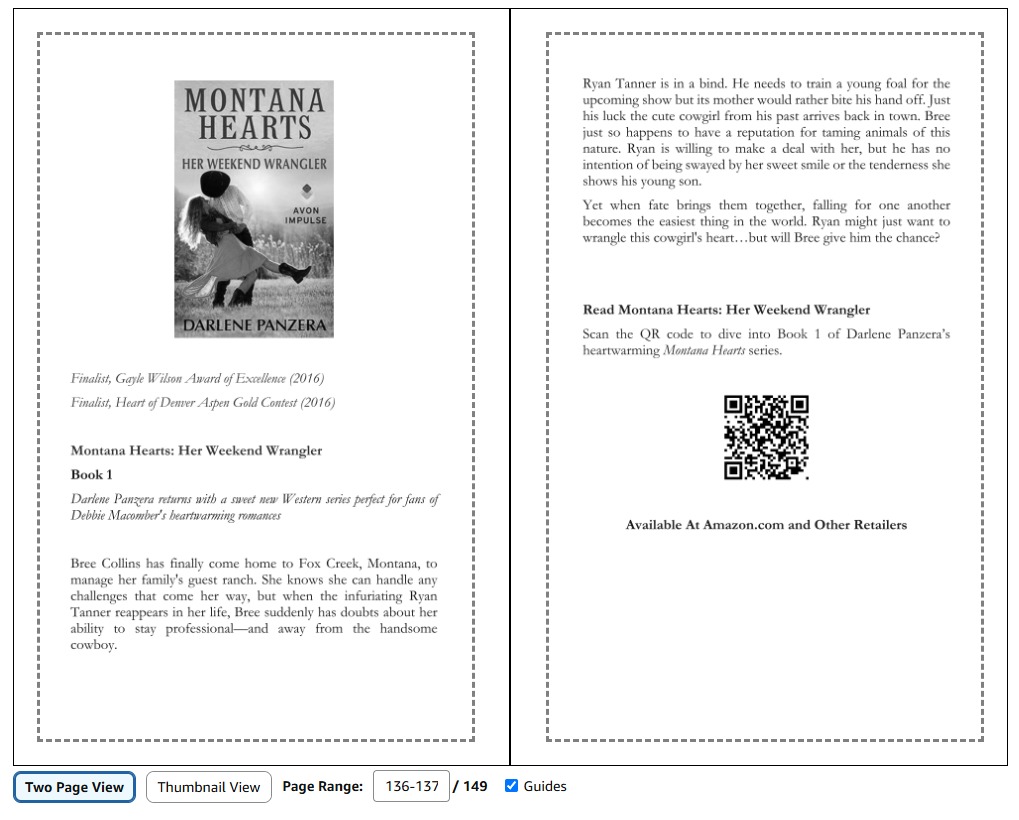
The back cover images of your other books
-
Mailing list invitations and QR codes
-
Author bio or “About the Author” page
These pages give your readers a reason to stay connected with you, and they are especially valuable for indie authors who want to build a following.
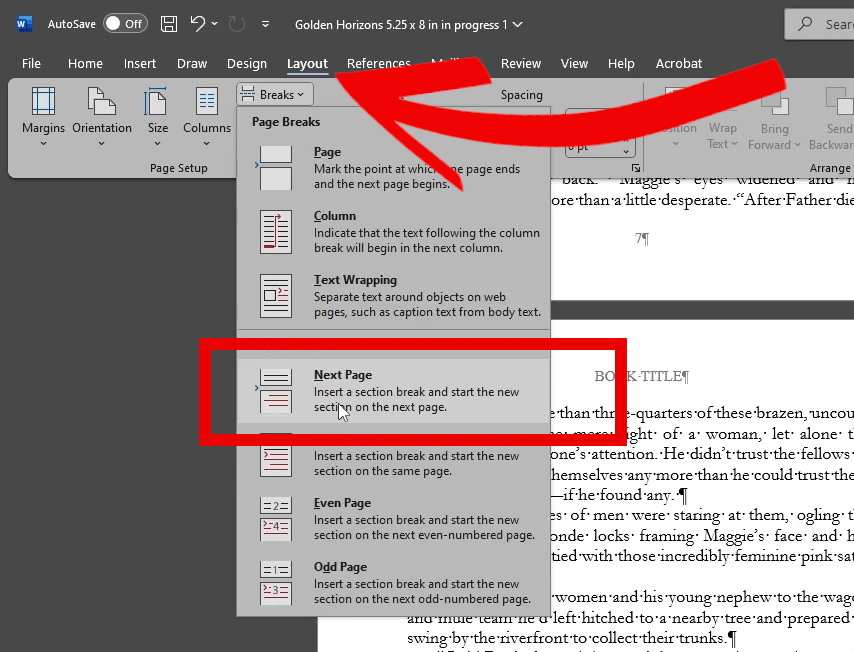
Step 1: Add Extra Pages for Back Matter
Before inserting content, you need extra pages in your manuscript:
-
Place your cursor where the back matter should start (usually after the last chapter or an offer page).
-
Go to Layout > Breaks > Section Breaks > Next Page.
-
This ensures the new section starts on a fresh page and allows you to adjust headers and footers separately.
-
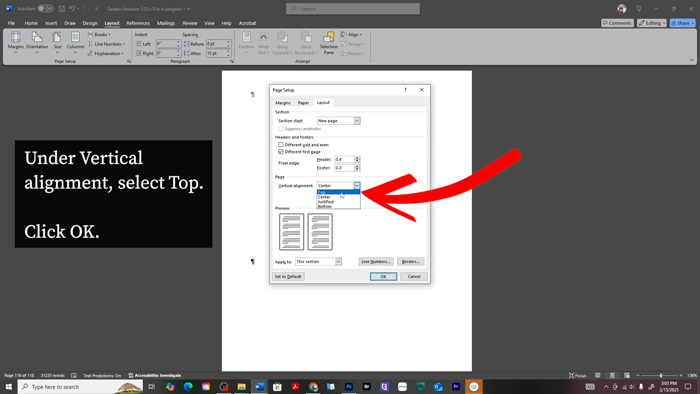
Step 2: Ensure Text Starts at the Top of the Page, Not The Middle
Sometimes, Word Amazon KDP Template places text in the middle of a new section. Fix this with:
-
Go to Layout > Page Setup > Layout tab.
-
Under Vertical alignment, select Top.
-
Click OK.
This keeps your back matter content aligned with the rest of your manuscript.
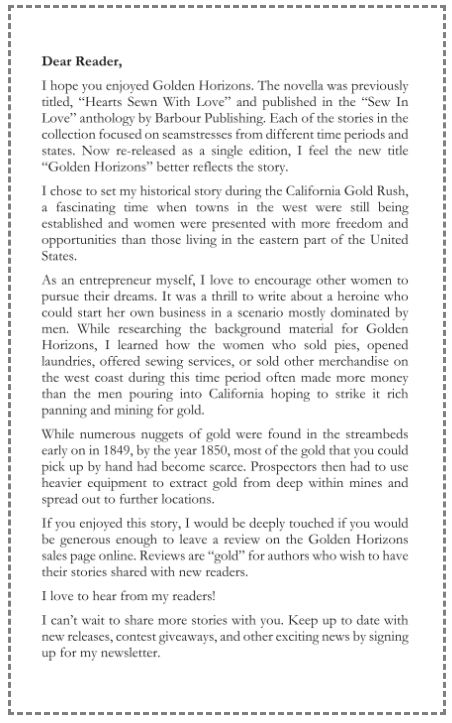
Step 3: Add Your Dear Reader Letter
A Dear Reader letter is optional but highly recommended. It can include:
-
Your inspiration for writing the book
-
Behind-the-scenes details or fun facts
-
A warm thank-you note to your reader
Formatting tips:
-
Keep the font and size consistent with the rest of your manuscript (commonly Garamond 11 pt).
-
Adjust paragraph settings for clean spacing:
-
Alignment: Justified
-
Indentation: First line 0.2”
-
Spacing: 0 pt before, 6 pt after, single line spacing
-
-
Remove any hyperlinks (printed books cannot display clickable links).
Please note that text size and indents are for Print Formatting, for ebook formatting, check out my other blog post:
How to Format Your Ebook in Microsoft Word for Amazon KDP (Step-by-Step Guide)
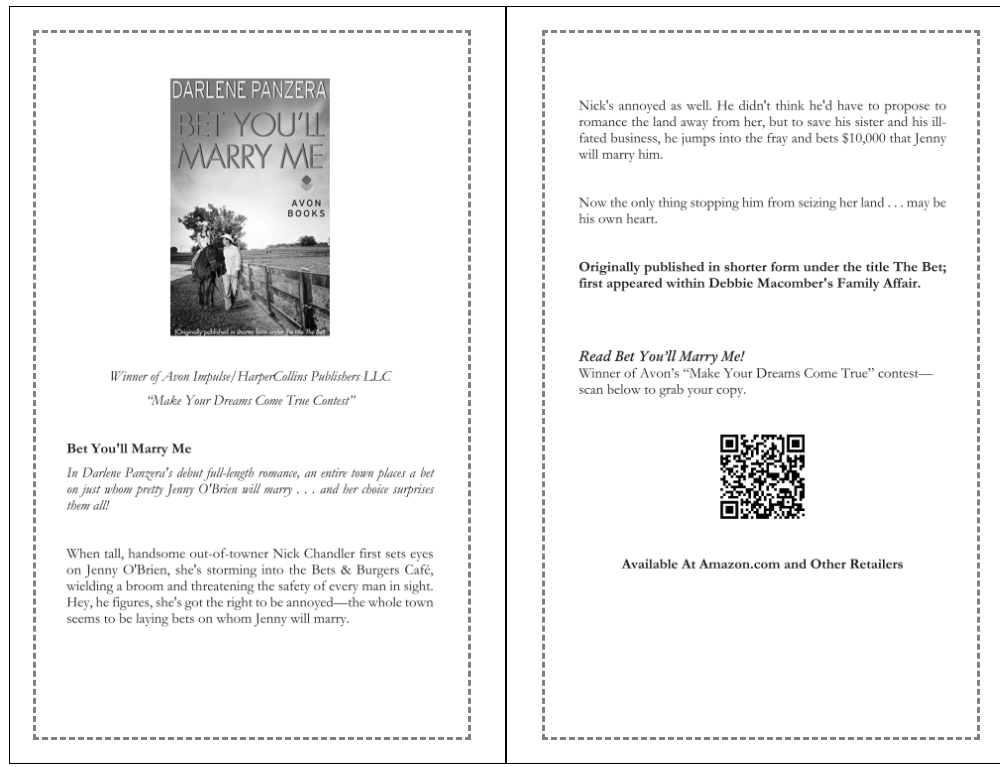
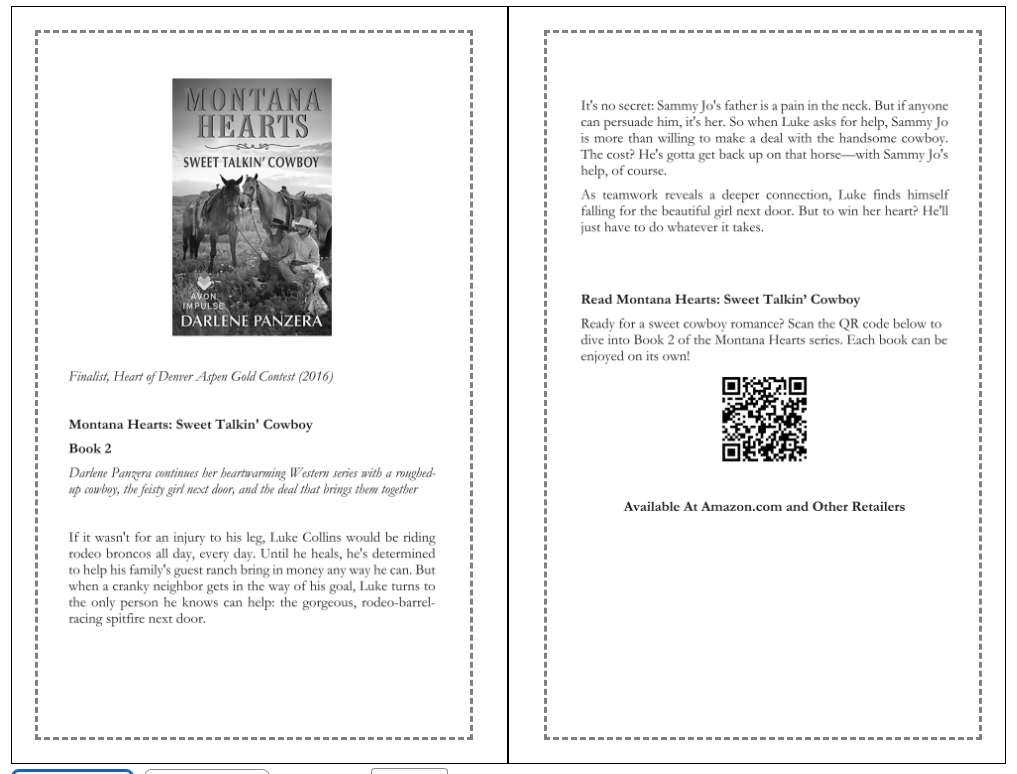
Step 4: Insert Book Covers into Your Back Matter
Adding images of your other books helps readers discover more of your work.
-
Place your cursor where the book cover should go.
-
Go to Insert > Pictures > This Device, and select your book cover file.
-
Resize the image precisely using Word’s Picture Format > Size options:
-
Height & Width: Enter exact dimensions (e.g., 5” height).
-
Lock aspect ratio: Checked to avoid stretching.
-
-
Align the cover: Picture Format > Align > Align Center.
-
Wrap text as needed: Picture Format > Wrap Text > In Front of Text (keeps text from moving around).
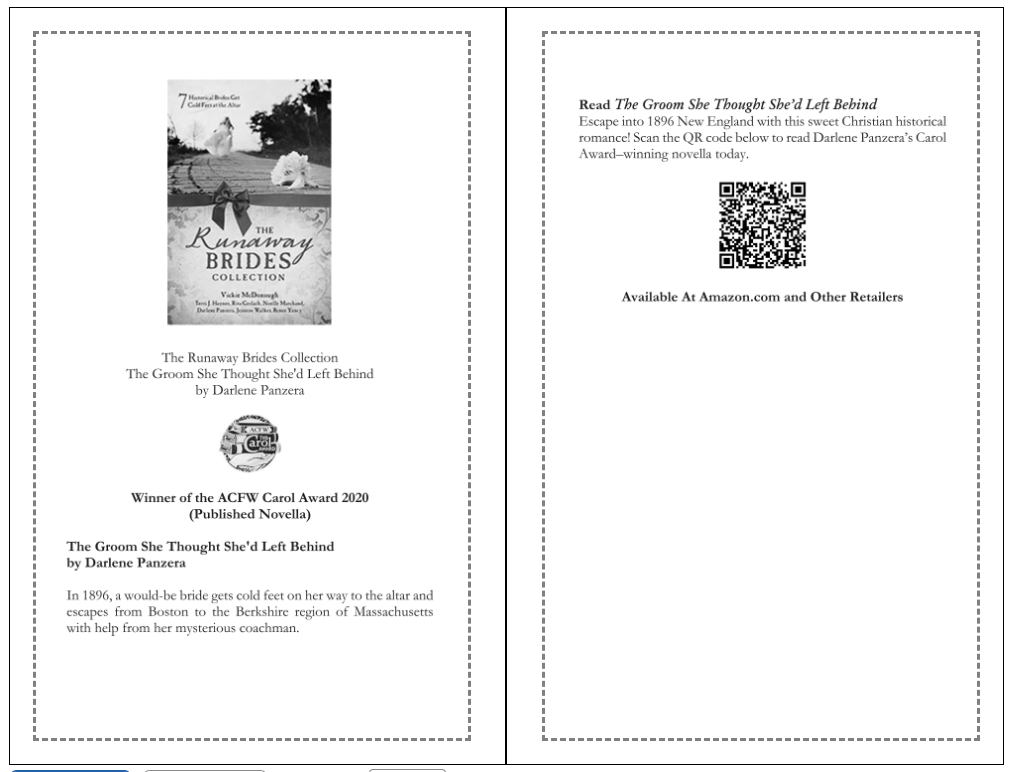
Step 5: Add QR Codes for Easy Reader Access
QR codes are perfect for linking readers to your book sales page, email list, or website:
-
Create a QR code using QR Code Monkey.
-
Enter your URL (Amazon, website, newsletter sign-up, etc.)
-
Customize design and download as PNG.
-
-
Insert the QR code into your Word document: Insert > Pictures > This Device.
-
Resize using Picture Format > Size (e.g., 1.25” x 1.25”) and check Lock aspect ratio.
-
Align under your book cover using Align Center.
This method keeps your QR codes scan-friendly and neatly formatted for print.
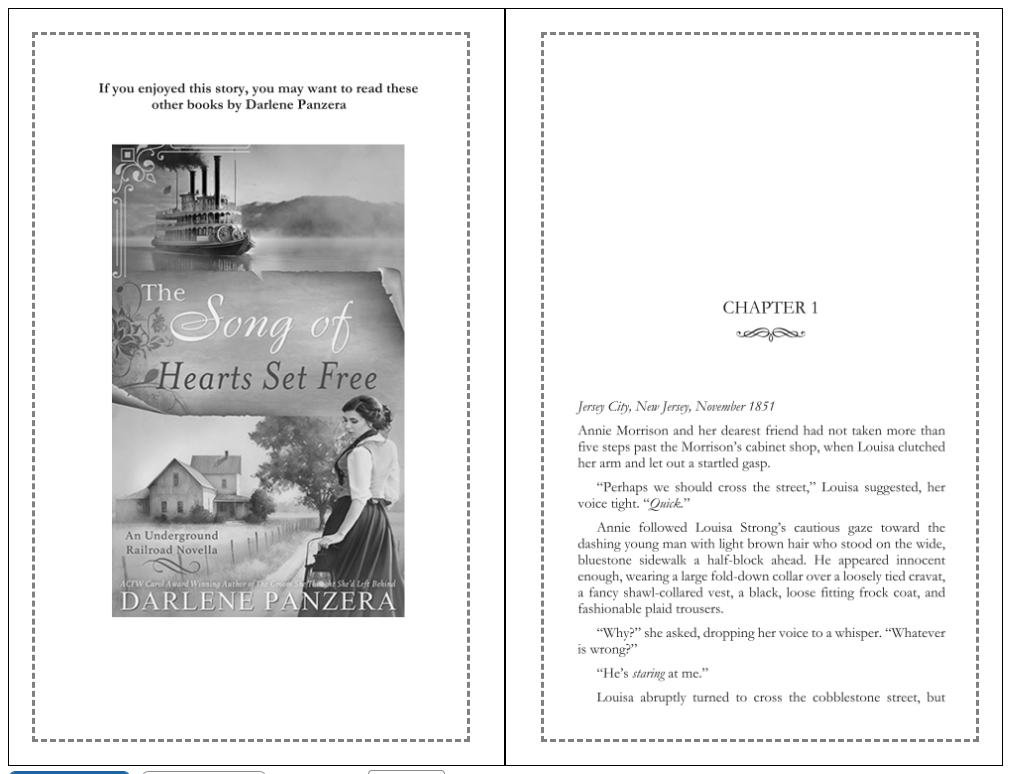
Step 6: Add Bonus Chapters or Excerpts
If you want to include a sneak peek of another book:
-
Insert a new section break: Layout > Breaks > Section Break > Next Page.
-
Paste your text into the new section.
-
Format chapter titles consistently:
-
Font: Same as manuscript
-
Size: 14 pt for chapter titles, body text 11 pt
-
Spacing: Single, first-line indent 0.2”
-
-
Insert images (cover art, illustrations) using the same Picture Format > Size method.
Please note that text size and indents are for Print Formatting, for ebook formatting, check out my other blog post:
How to Format Your Ebook in Microsoft Word for Amazon KDP (Step-by-Step Guide)
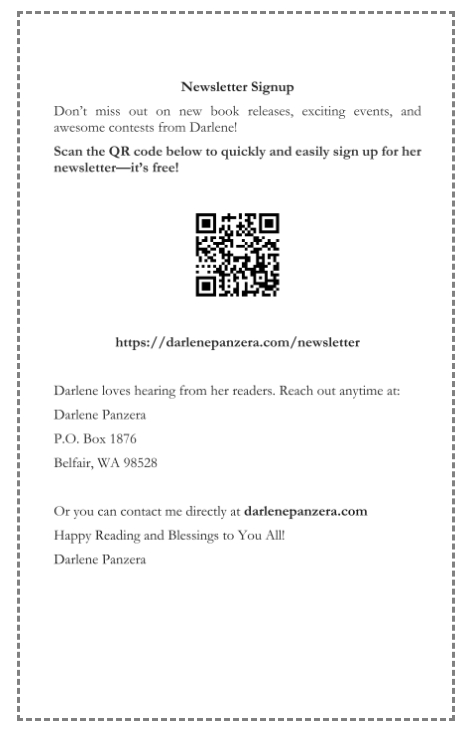
Step 7: Add Your Mailing List Call-to-Action
Encourage readers to stay connected:
-
Insert a short paragraph inviting readers to sign up for your newsletter.
-
Include a QR code linking directly to your sign-up page.
-
Remove any hyperlinks; plain text URLs are best for print.
Step 8: Showcase Your Other Books
To promote additional titles:
-
Insert another section break > Next Page.
-
Add each book cover individually: Insert > Pictures > This Device.
-
Resize and align each cover using Picture Format > Size and Align.
-
Add a short description or back cover blurb under each cover using a text box.
-
Include a QR code for each book’s purchase link if desired.
Step 9: Final Checks
-
Ensure all text is aligned and spaced consistently.
-
All images and QR codes are resized and centered properly.
-
Remove all hyperlinks.
-
Make sure section breaks separate your back matter pages from your main manuscript.
Key Tips for Professional Back Matter
-
Use section breaks, not page breaks, to maintain control of headers and footers.
-
Keep font, size, and spacing consistent throughout.
-
Use Picture Format settings for all images—don’t drag corners.
-
QR codes must be clear and large enough to scan.
-
Preview your manuscript in Print Preview before uploading to KDP.
You May Also Like
We Believe All Authors Can Aspire to Take Their Writing to the Next Level!
Our Goal for Aspiring Writer Academy is to help people learn how to write quality fiction, teach them to publish and promote their work, and to give them the necessary tools to pursue a writing career.
Before You Go… Grab This Free Resource!
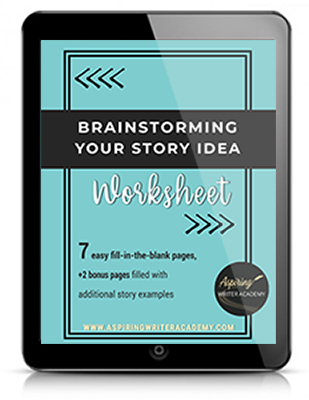
If you’re in the early stages of writing your novel, don’t forget to download our free Brainstorming Your Story Idea Worksheet. It includes:
-
Fill-in-the-blank prompts
-
Story structure examples
-
Guided questions
-
Idea-boosting templates
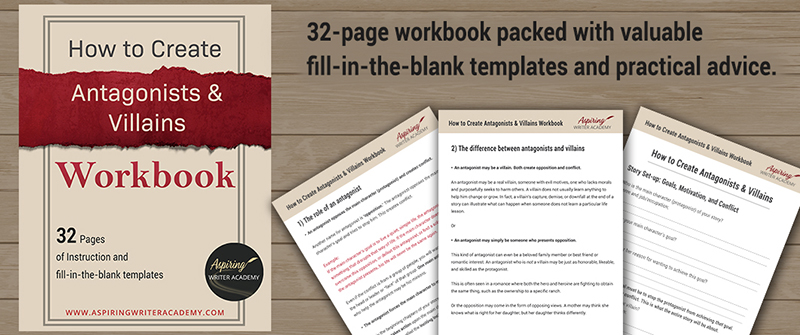
Do you find it difficult to create compelling antagonists and villains for your stories? Do your villains feel cartoonish and unbelievable? Do they lack motivation or a specific game plan? Discover the secrets to crafting villains that will stick with your readers long after they finish your story, with our How to Create Antagonists & Villains Workbook.
This 32-page instructional workbook is packed with valuable fill-in-the-blank templates and practical advice to help you create memorable and effective antagonists and villains. Whether you're a seasoned writer or just starting out, this workbook will take your writing to the next level.
Other Posts You May Like: