eBook Formatting in Microsoft Word: How to Style Your Manuscript with Proper Indents, Spacing, and Fonts for KDP
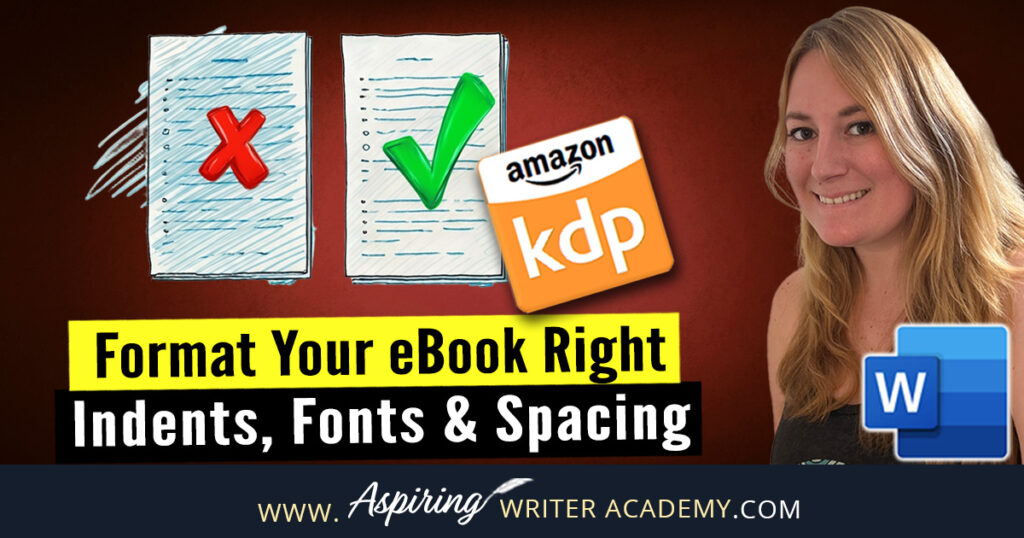





Formatting your manuscript properly is a crucial step before self-publishing on Amazon KDP. If you skip this part or do it incorrectly, your ebook might end up looking messy and unprofessional—which can lead to negative reviews and lost sales.
The good news? You can easily style your manuscript in Microsoft Word to get it Kindle-ready. In the video below, I walk you through how to format your fiction ebook with proper indents, spacing, and font choices.
👇 Watch the step-by-step tutorial here:

 Step 1: Stop Using the Tab Key for Indents
Many writers still use the Tab key to indent new paragraphs—but when it comes to formatting an ebook for Amazon KDP, that’s a big mistake. Tabs can cause major alignment issues on Kindle devices, making your book look messy or unprofessional.
 What Those Little Arrow Marks Mean
When you turn on formatting marks in Microsoft Word (by clicking the ¶ symbol on the Home tab), you’ll see small right-facing arrows (→) at the beginning of some lines.
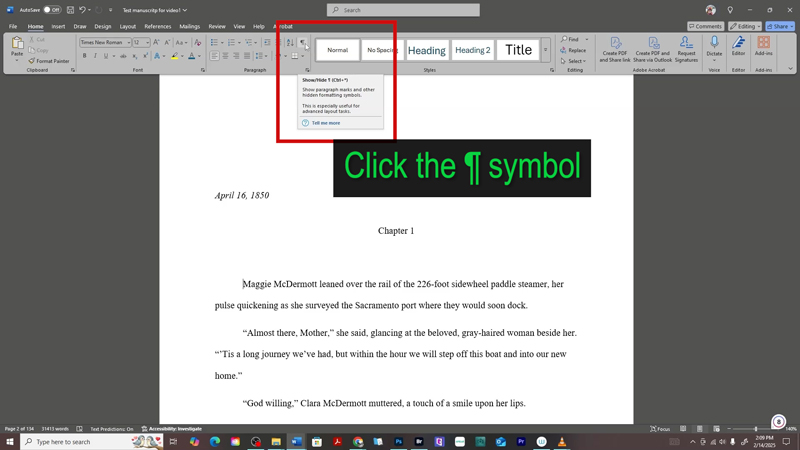
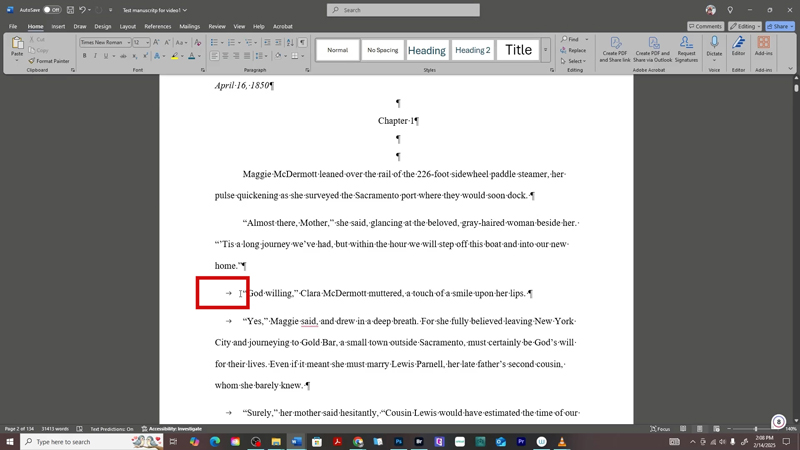
These right-facing arrows (→) at the beginning of lines are a sign that the Tab key was used to create indents.
While that’s fine in a printed Word doc, those tab marks don’t convert well when you upload your file to Kindle. You might end up with paragraphs that look off-center or misaligned—especially on mobile or e-readers.
 Why You Should Remove Tabs Before Formatting
Using tabs can:
-
Mess up your ebook formatting on different screen sizes
-
Lead to inconsistent indentation
-
Cause your manuscript to look amateurish
The good news? You don’t have to delete them one by one. There’s a quick shortcut that cleans them all up in seconds.
 How to Remove All Tabs (the Fast Way)
Instead of scrolling through hundreds of pages deleting each tab manually, just follow this shortcut:
-
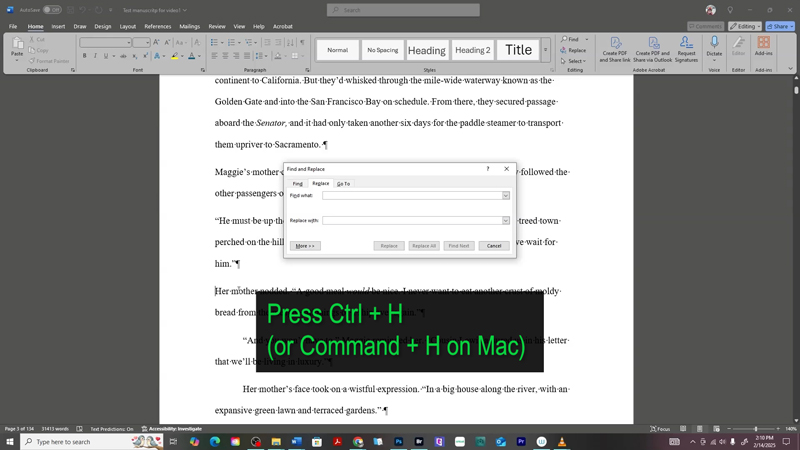
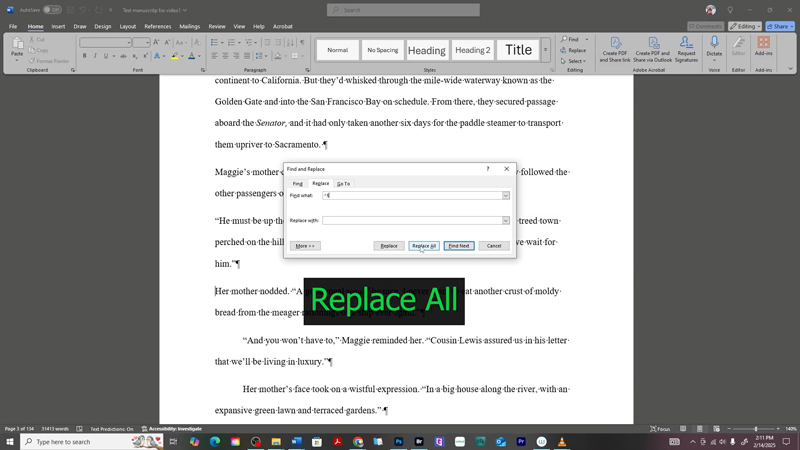
Press Ctrl + H (to open the Find and Replace window).
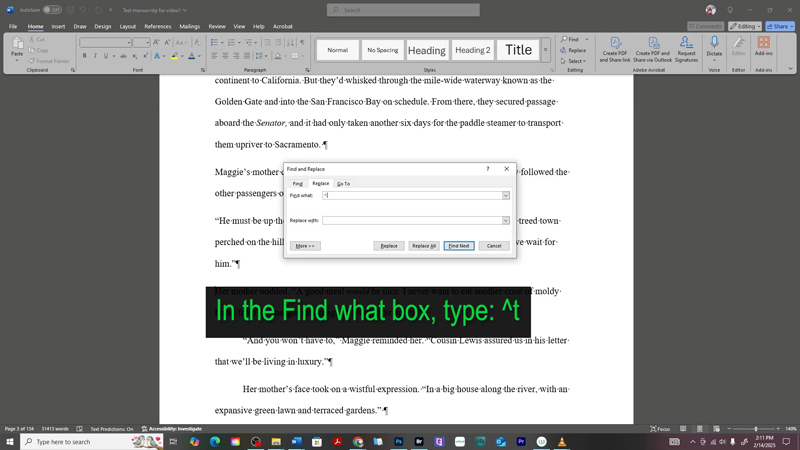
2. In the “Find what” box, type: ^t
(That’s a caret symbol and the letter t—it tells Word to find every tab character.)
3. Leave the “Replace with” box empty.
3. Leave the “Replace with” box empty.
4. Click Replace All.
 Done! Word will scan your entire document and remove every tab instantly.
 Step 2: Apply Consistent Paragraph Styling
Once you’ve cleaned up the tabs, it's time to apply proper formatting to your entire manuscript.
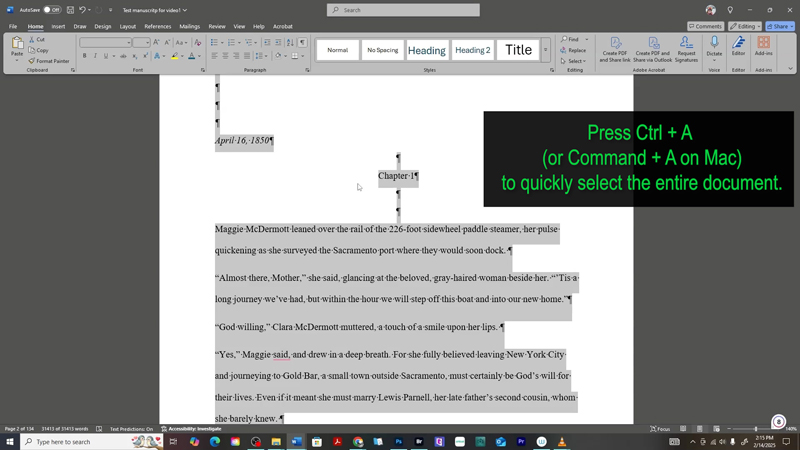
Select the Entire Document:
-
Press Ctrl + A to highlight all text.
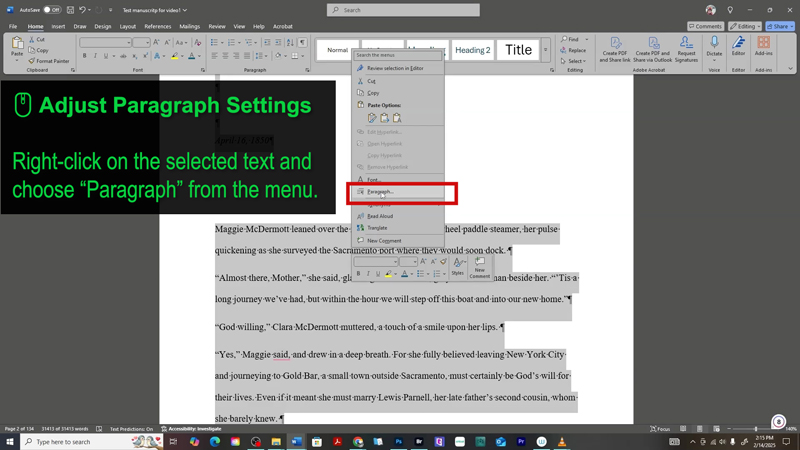
- Right-click and choose Paragraph to open the formatting options.
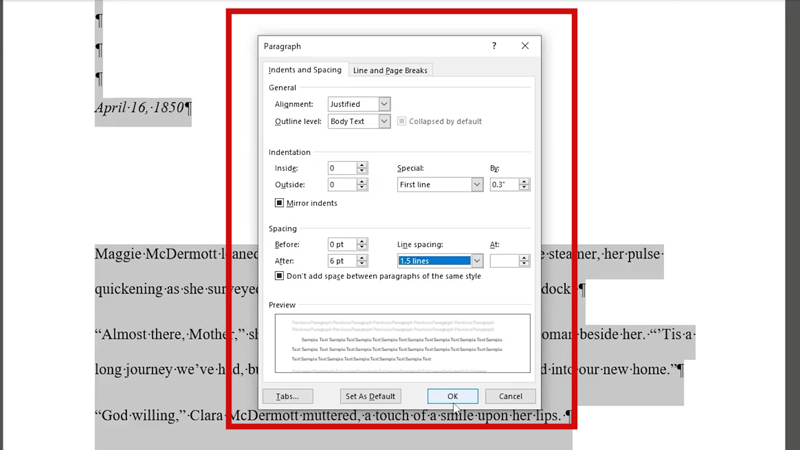
Adjust the Following Settings:
Under "General":
-
Alignment: Justified
-
Outline Level: Body Text
Under "Indentation":
-
Left: 0
-
Right: 0
-
Special: First Line
-
By: 0.3" (This is standard for fiction ebooks.)
Under "Spacing":
-
Before: 0 pt
-
After: 6 pt (Adds a little breathing room between paragraphs.)
-
Line Spacing: 1.5 lines
-
Make sure to check: “Don’t add space between paragraphs of the same style.”
Click OK to apply your changes.
 Step 3: Choose the Right Font & Size
The font you use can make or break the readability of your ebook.
 Recommended Fonts for eBooks:
-
Times New Roman (classic and clean)
-
Georgia (gentle and very readable on screens)
-
Garamond (elegant, often used for print)
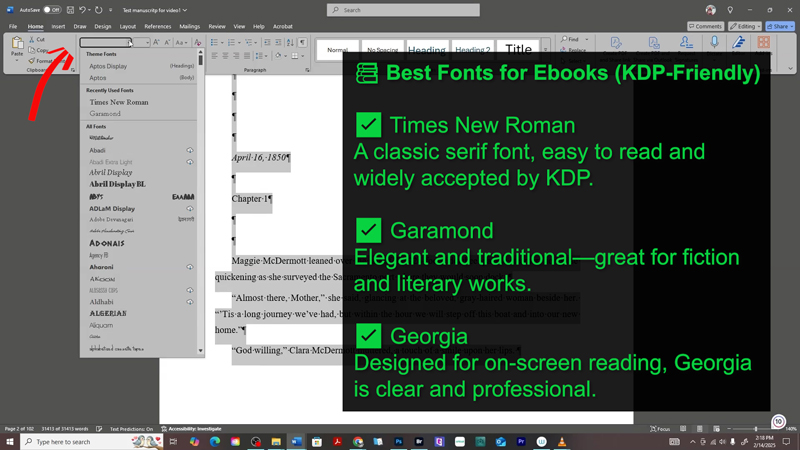
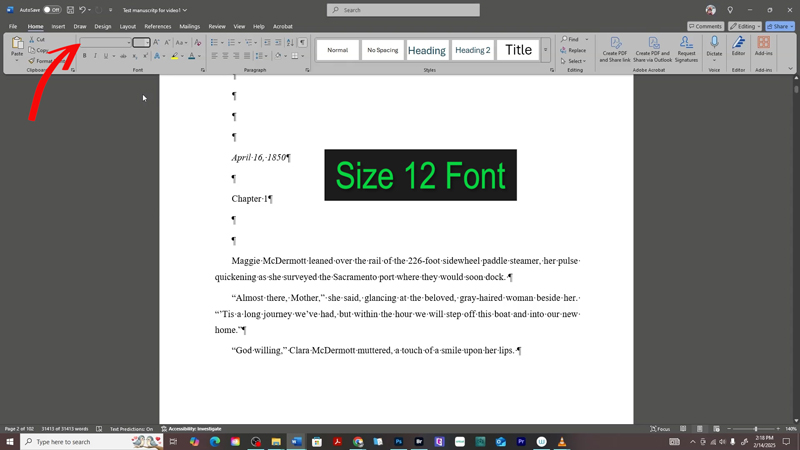
For this tutorial, I recommend using:
-
Font size: 12 pt
-
Font style: Times New Roman (for the ebook version)
You can switch to Garamond if you're formatting for a print edition later.
 Bonus Tip: Save a Clean Copy
After formatting your manuscript:
-
Save it as a new file (e.g., "MyBook_FormattedForKDP.docx")
-
This way, you always have a clean, styled version ready to go for KDP uploads.
 Why This Matters
Taking the time to properly format your manuscript:
-
Makes your book more professional
-
Improves the reader experience
-
Reduces the chances of weird formatting errors on Kindle devices
A polished interior layout reflects the quality of your writing—and that can increase sales and boost your reviews.
 Have Book Formatting Questions?
Drop your questions in the comments below or on the video!
And if this tutorial helped you, don’t forget to like, subscribe, and share with fellow writers getting ready to self-publish.
Other Posts You May Like:


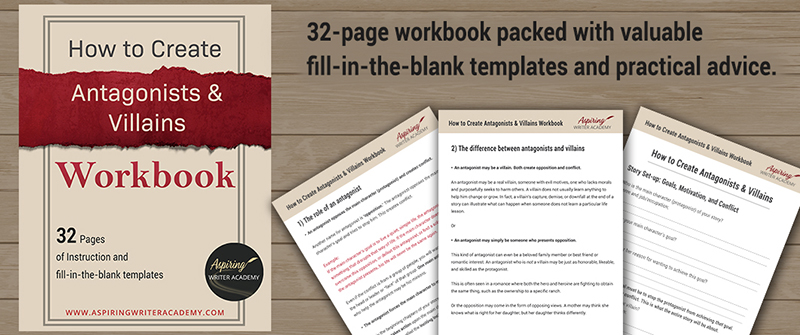
Do you find it difficult to create compelling antagonists and villains for your stories? Do your villains feel cartoonish and unbelievable? Do they lack motivation or a specific game plan? Discover the secrets to crafting villains that will stick with your readers long after they finish your story, with our How to Create Antagonists & Villains Workbook.
This 32-page instructional workbook is packed with valuable fill-in-the-blank templates and practical advice to help you create memorable and effective antagonists and villains. Whether you're a seasoned writer or just starting out, this workbook will take your writing to the next level.
Other Posts You May Like:
We Believe All Authors Can Aspire to Take Their Writing to the Next Level!
Our Goal for Aspiring Writer Academy is to help people learn how to write quality fiction, teach them to publish and promote their work, and to give them the necessary tools to pursue a writing career.
ENTER YOUR EMAIL BELOW
TO GET YOUR FREE
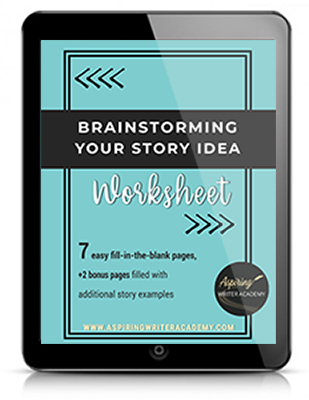
"Brainstorming Your Story Idea Worksheet"
7 easy fill-in-the-blank pages,
+ 2 bonus pages filled with additional story examples.
A valuable tool to develop story plots again and again.