How To Clean Up All Markup And Comments In Word Before Uploading To Amazon KDP
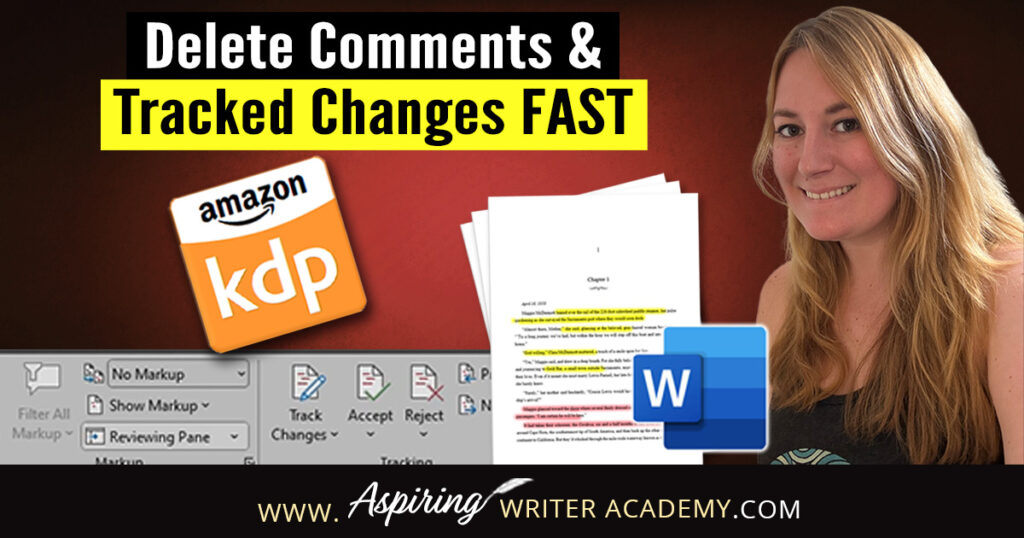
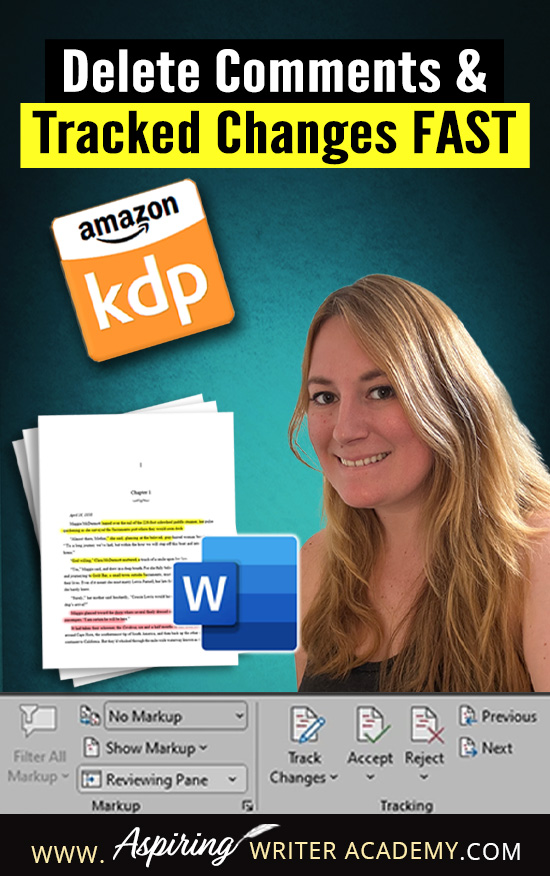
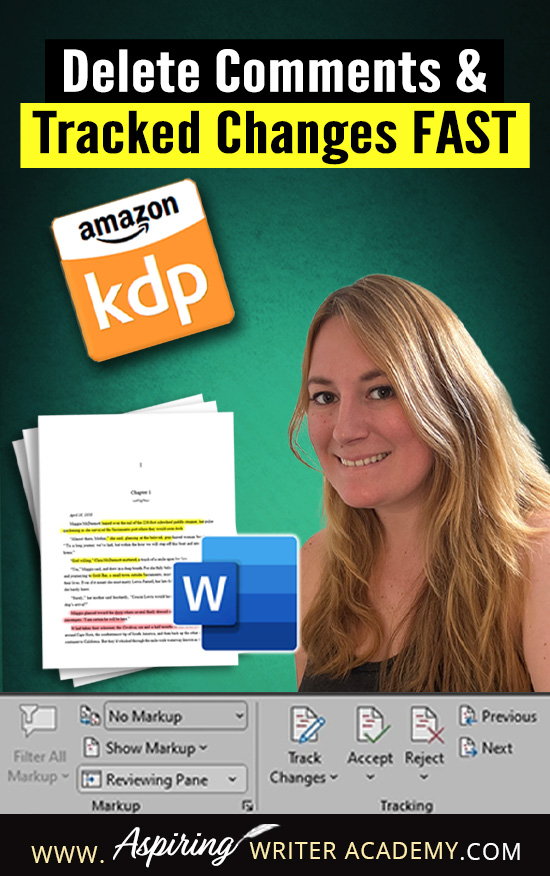
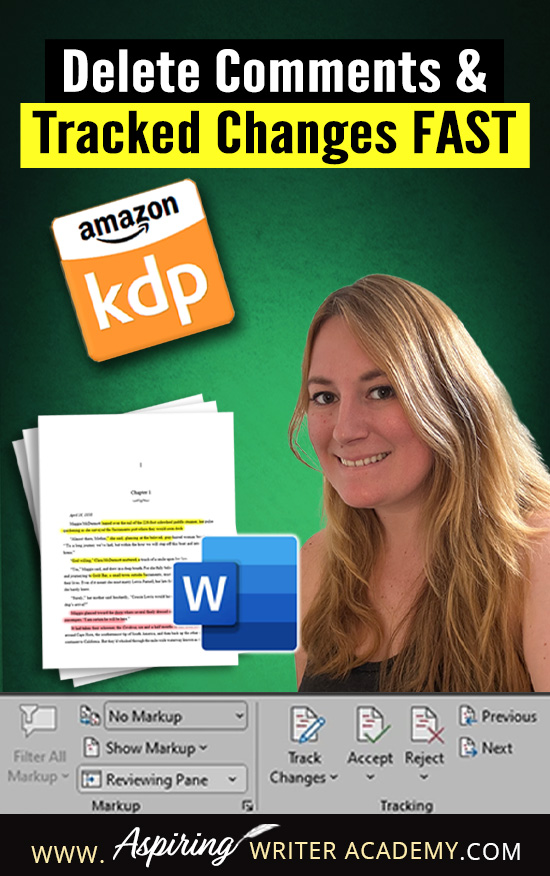
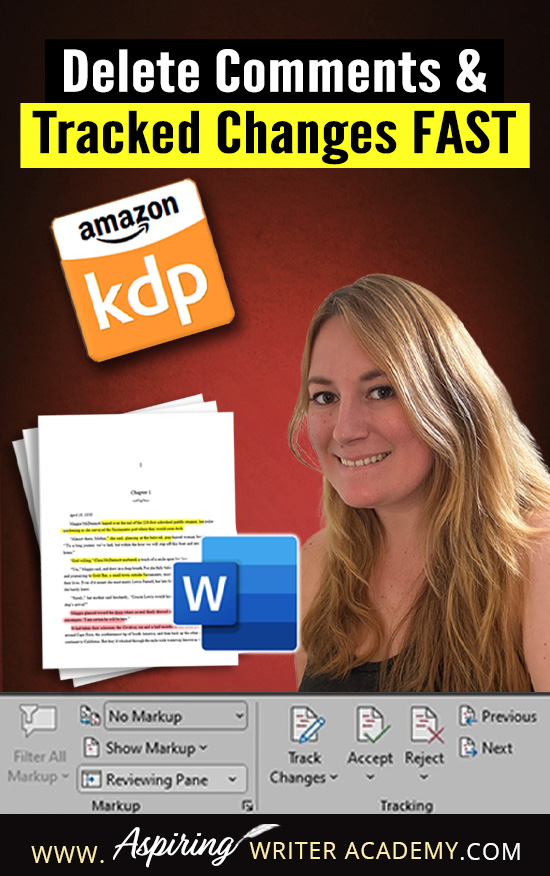
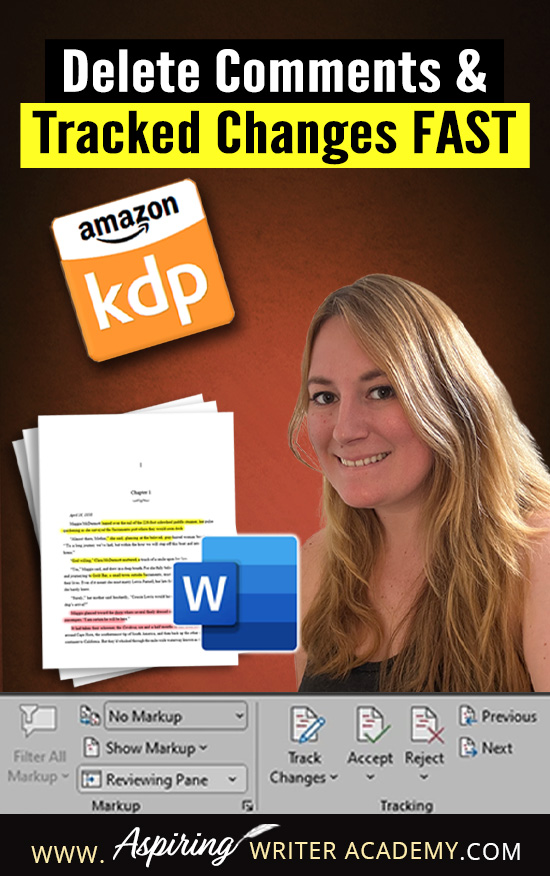
Publishing your eBook to Amazon KDP? Before you click that final upload button, there’s one important cleanup step you don’t want to skip—removing all the leftover markup, comments, and tracked changes from your Word document. Whether you’ve worked with an editor, shared your manuscript with beta readers, or just used Word’s Track Changes feature yourself, those visible edits can accidentally get published in your final eBook if you’re not careful.
In this post, I’ll show you exactly how to clean up your document in Microsoft Word so it’s polished and professional before you format your eBook for publication. You’ll learn how to accept or reject changes, delete comments, and turn off Track Changes completely—so your final file is clean, smooth, and ready for readers on Amazon KDP.

 Step 1: Remove All Markup and Comments from Your Word Document
Before you start formatting your manuscript for Kindle, it’s crucial to clean up any editing leftovers. Tracked changes, comment bubbles, and other markup can accidentally make it into your final eBook file—and that’s the last thing you want readers to see on Amazon KDP.
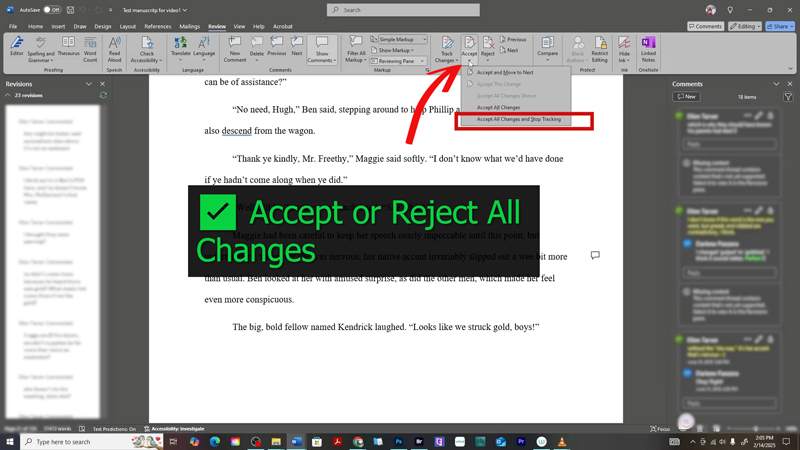
 Finalize Edits: Accept or Reject All Changes in Word
If you've used Microsoft Word’s Track Changes feature—or worked with an editor or beta reader—make sure every edit has been accepted or rejected.
Here’s how to finalize all changes:
-
Open your manuscript in Microsoft Word.
-
Go to the Review tab.
-
Use the Accept or Reject buttons to go through each change manually, or choose Accept All Changes and Stop Tracking if you’re ready to finalize everything at once.
This ensures your manuscript is clean, consistent, and ready for professional formatting.
 Step 2: Delete All Comments in Microsoft Word Before Formatting for Amazon KDP
Even though comments don’t appear in your published Kindle eBook, they can still cause formatting issues—like strange page breaks, misaligned text, or unexpected blank spaces. If your document looks off—especially if content is pushed to the left margin—it could be due to hidden comments left over from editing.
To make sure your manuscript is clean and ready to format for Amazon KDP, it's essential to remove all editor comments, notes, and feedback threads from your Word document.
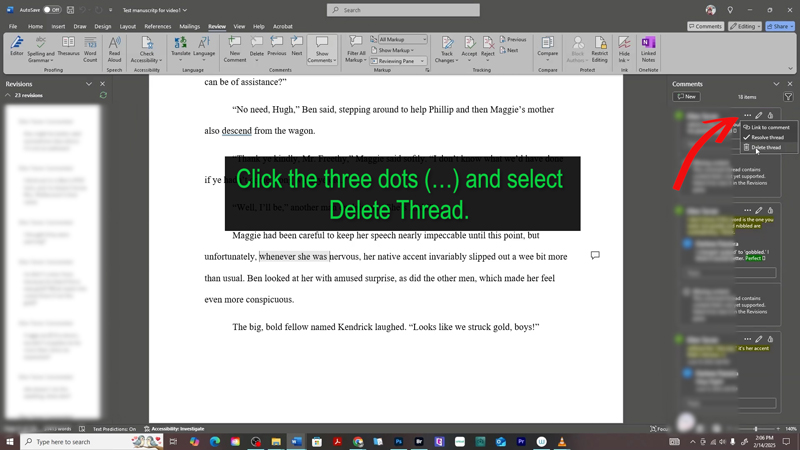
 How to Remove Individual Comments in Word
If you only need to delete a few comments manually, here’s how:
-
Click on the comment balloon in the right margin to select it.
-
Click the ellipsis (⋯) in the upper right corner of the comment box.
-
Choose “Delete Thread” to remove the entire comment and any attached replies.
Repeat this process for each comment you want to delete from your manuscript.
 Pro tip: If you’re preparing your manuscript for Kindle, it’s usually faster to delete all comments at once. We’ll show you how to do that next!
🧼 How to Delete All Comments in Word with One Click
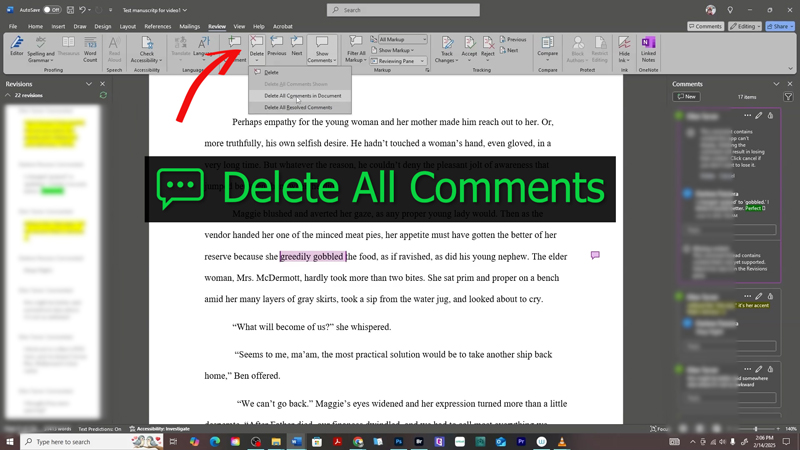
If your manuscript has a lot of comments—whether from an editor, critique partner, or yourself—you don’t need to remove them one by one. Microsoft Word makes it easy to delete all comments at once, so you can clean up your document quickly before formatting your eBook for Amazon KDP.
Here’s how to remove every comment in your manuscript in just a few seconds:
-
Go to the Review tab in Microsoft Word.
-
In the Comments section, click the small arrow next to the Delete button.
-
From the dropdown menu, select “Delete All Comments in Document.”
That’s it! Word will instantly remove every comment from your document—ensuring your eBook file is clean, polished, and ready to be formatted for Kindle without any lingering editing notes.
 Step 3: Turn Off Track Changes in Word to Avoid New Edits Being Tracked
Before you start formatting your manuscript for Kindle, double-check that Track Changes is turned off. If it’s still on, any small edits you make—like adjusting spacing, fixing a typo, or formatting chapter headings—will continue to be tracked and could sneak into your final eBook file.
Here’s how to turn off Track Changes in Microsoft Word:
-
Go to the Review tab in the top menu.
-
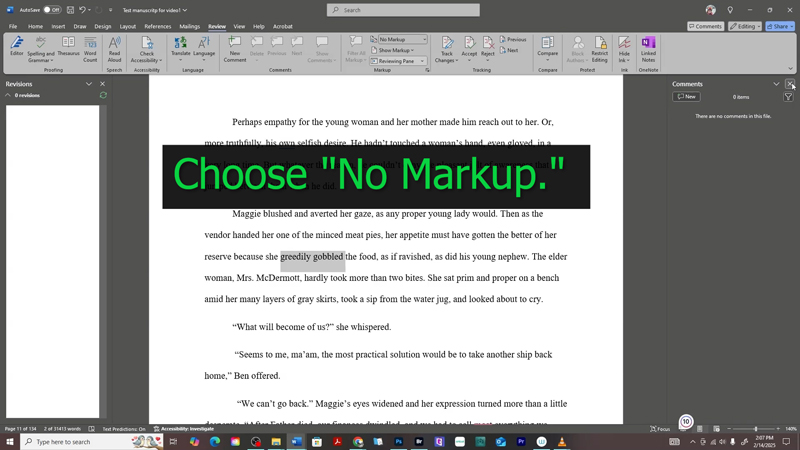
Click the Track Changes button to toggle it off (the button should no longer be highlighted).
-
In the dropdown next to Display for Review, choose No Markup to hide all tracked changes and view your document as it will appear when finalized.
This ensures you’re working with a clean, distraction-free version of your manuscript and prevents any new edits from being recorded or displayed in your formatted eBook.
📘 Final Thoughts: Clean Up Your Word Document Before Publishing to Amazon KDP
Taking a few extra minutes to clean up your Word document can save you major headaches later. Many self-published authors accidentally leave behind Track Changes, editor comments, or markup that ends up in their final Kindle eBook—and that’s not the professional look you want your readers to see.
By removing all comments, turning off Track Changes, and accepting or rejecting all edits before you format your manuscript, you’ll ensure your file is polished, clean, and ready for Kindle conversion.
✅ A clean document = fewer formatting issues and a smoother publishing process on Amazon KDP.
Before you move on to the next step—whether it’s formatting in Word, converting to EPUB, or uploading to Kindle Direct Publishing—make sure your file is completely free of hidden edits. It’s a quick win that can make a big difference in how your finished eBook looks to readers.
Other Posts You May Like:






We Believe All Authors Can Aspire to Take Their Writing to the Next Level!
Our Goal for Aspiring Writer Academy is to help people learn how to write quality fiction, teach them to publish and promote their work, and to give them the necessary tools to pursue a writing career.
ENTER YOUR EMAIL BELOW
TO GET YOUR FREE
"Brainstorming Your Story Idea Worksheet"
7 easy fill-in-the-blank pages,
+ 2 bonus pages filled with additional story examples.
A valuable tool to develop story plots again and again.
Other Blog Posts You May Like
Scene & Sequel: The Secret to Plotting an Epic Novel
Scene & Sequel: The Secret to Plotting an Epic Novel (Part 2)
Writing Fiction: How to Develop Your Story Premise
12 Quick Tips to Write Dazzling Dialogue
10 Questions to Ask When Creating Characters for Your Story
Macro Edits: Looking at Your Story as a Whole
Basic Story Structure: How to Plot in 6 Steps
Writing Fiction: How To Keep Track of Time in Your Story
Behind the Scenes: Interview with the Authors of the “Sew in Love” Collection









Do you find it difficult to create compelling antagonists and villains for your stories? Do your villains feel cartoonish and unbelievable? Do they lack motivation or a specific game plan? Discover the secrets to crafting villains that will stick with your readers long after they finish your story, with our How to Create Antagonists & Villains Workbook.
This 32-page instructional workbook is packed with valuable fill-in-the-blank templates and practical advice to help you create memorable and effective antagonists and villains. Whether you're a seasoned writer or just starting out, this workbook will take your writing to the next level.