
Amazon KDP Formatting: How to Delete Tabs in Word for a Clean Manuscript
If you're self-publishing on Amazon KDP, formatting your manuscript correctly is a big deal. One common issue that trips up new authors? Using the Tab key to indent paragraphs.
While tabs might look fine in a regular Word document, they can cause major problems when your book is converted to Kindle format. Weird spacing, uneven indents, or formatting that just doesn’t translate well—it's all avoidable with one simple fix: delete the tabs.

Here’s how to clean up tabs in Microsoft Word:
1. Open your manuscript in Word.
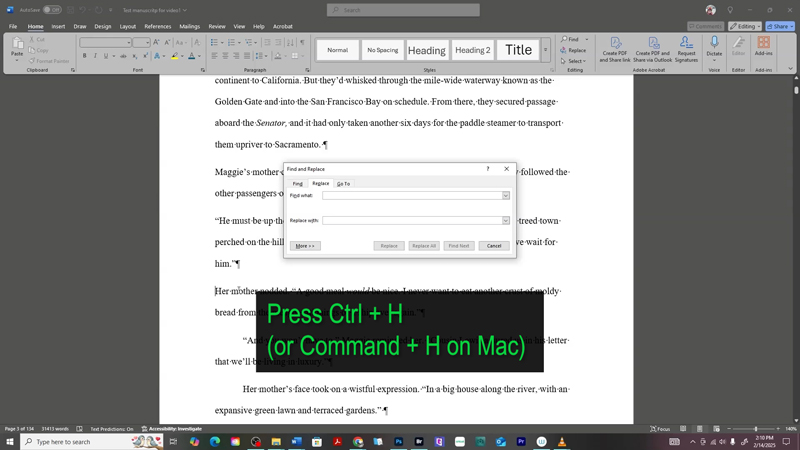
2. Press Ctrl+H (or Command+H on Mac) to bring up Find and Replace.
3. In the Find what box, type: ^t (that’s the code for a tab).
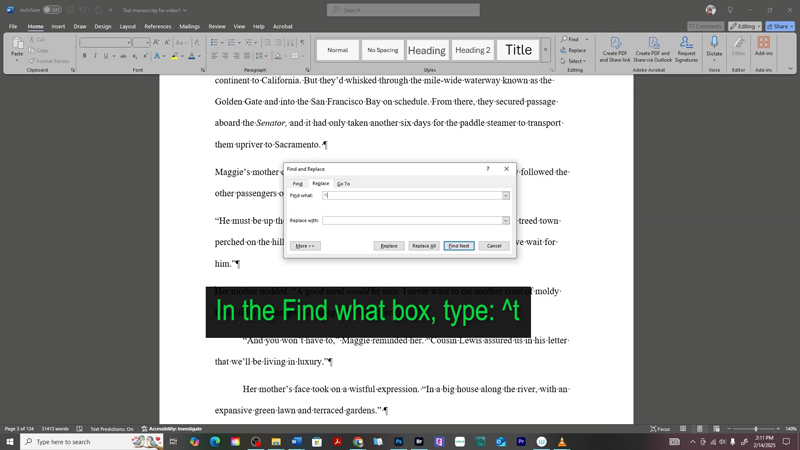
4. Leave the Replace with box empty.
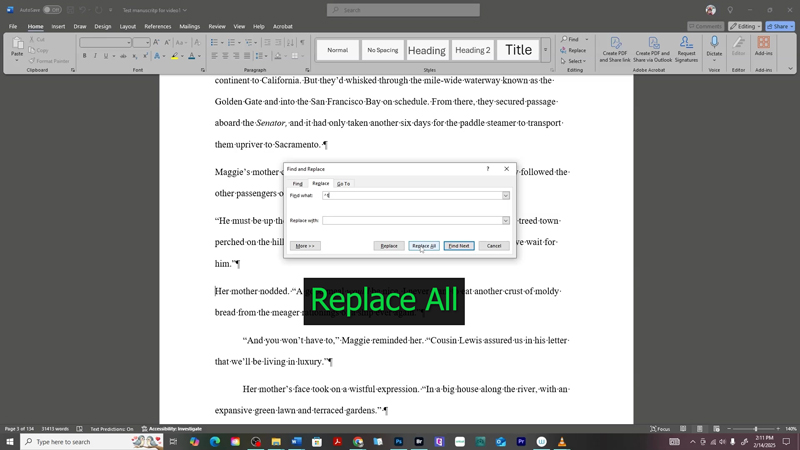
5. Click Replace All.
Boom—Word will remove all the tabs in your document!
Instead of using tabs, use Word’s built-in first line indent feature to format your paragraphs consistently. You’ll find it under the Paragraph Settings (Right-click > Paragraph > Indents and Spacing > First line).
Cleaning up tabs is a quick step, but it makes a huge difference when uploading to Amazon KDP. A clean manuscript = a more professional ebook.
Other Posts You May Like:






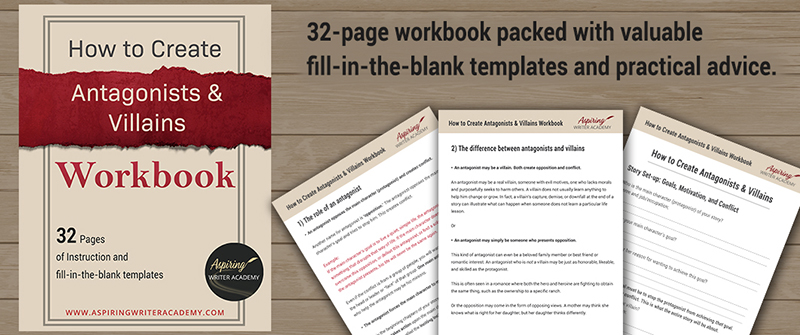
Do you find it difficult to create compelling antagonists and villains for your stories? Do your villains feel cartoonish and unbelievable? Do they lack motivation or a specific game plan? Discover the secrets to crafting villains that will stick with your readers long after they finish your story, with our How to Create Antagonists & Villains Workbook.
This 32-page instructional workbook is packed with valuable fill-in-the-blank templates and practical advice to help you create memorable and effective antagonists and villains. Whether you're a seasoned writer or just starting out, this workbook will take your writing to the next level.
We Believe All Authors Can Aspire to Take Their Writing to the Next Level!
Our Goal for Aspiring Writer Academy is to help people learn how to write quality fiction, teach them to publish and promote their work, and to give them the necessary tools to pursue a writing career.
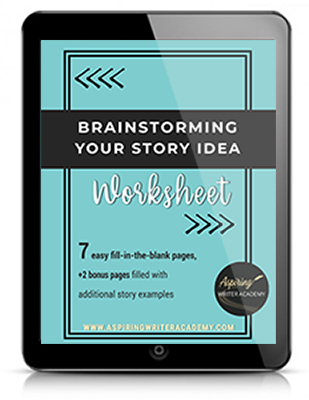
ENTER YOUR EMAIL BELOW
TO GET YOUR FREE
"Brainstorming Your Story Idea Worksheet"
7 easy fill-in-the-blank pages,
+ 2 bonus pages filled with additional story examples.
A valuable tool to develop story plots again and again.
Other Blog Posts You May Like
Scene & Sequel: The Secret to Plotting an Epic Novel
Scene & Sequel: The Secret to Plotting an Epic Novel (Part 2)
Writing Fiction: How to Develop Your Story Premise
12 Quick Tips to Write Dazzling Dialogue
10 Questions to Ask When Creating Characters for Your Story
Macro Edits: Looking at Your Story as a Whole
Basic Story Structure: How to Plot in 6 Steps
Writing Fiction: How To Keep Track of Time in Your Story
Behind the Scenes: Interview with the Authors of the “Sew in Love” Collection





Samantha Panzera is an adventurous travel blogger, graphic designer, and multi-media business entrepreneur who uses the experience she’s gained over the years to teach aspiring writers the skills they need to build an author platform and take their careers to the next level.